
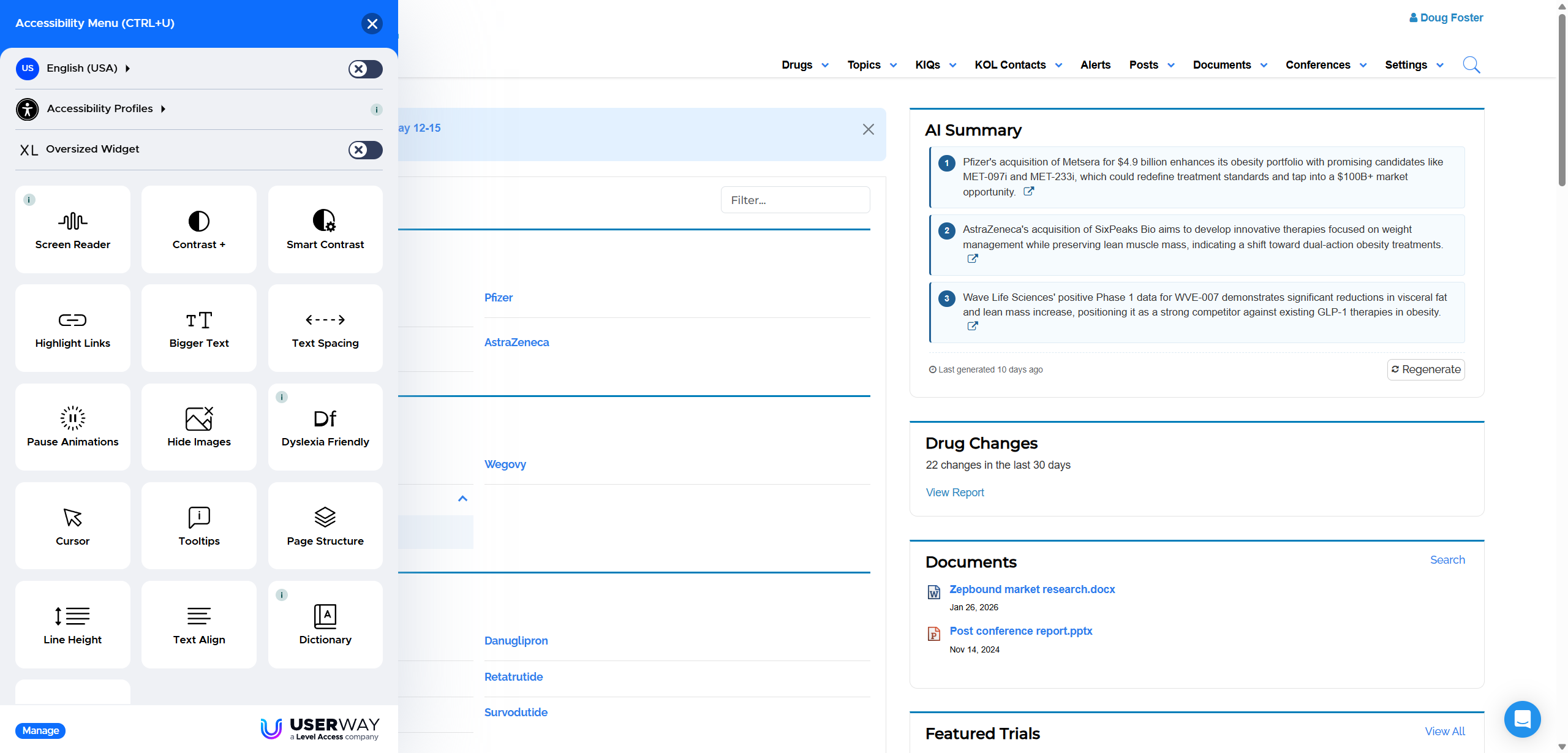
Customers can now request an additional set of tools that lets individual users adjust how content is displayed, use compatible assistive technology, and translate on-screen information.
We have added a new usability and accessibility option for customers who would like more ways to personalize their experience in inVision.
When enabled for your organization, the tool appears as an accessibility icon in the lower-left corner of the screen. Selecting the icon opens a menu of settings that each user can turn on or off as needed.
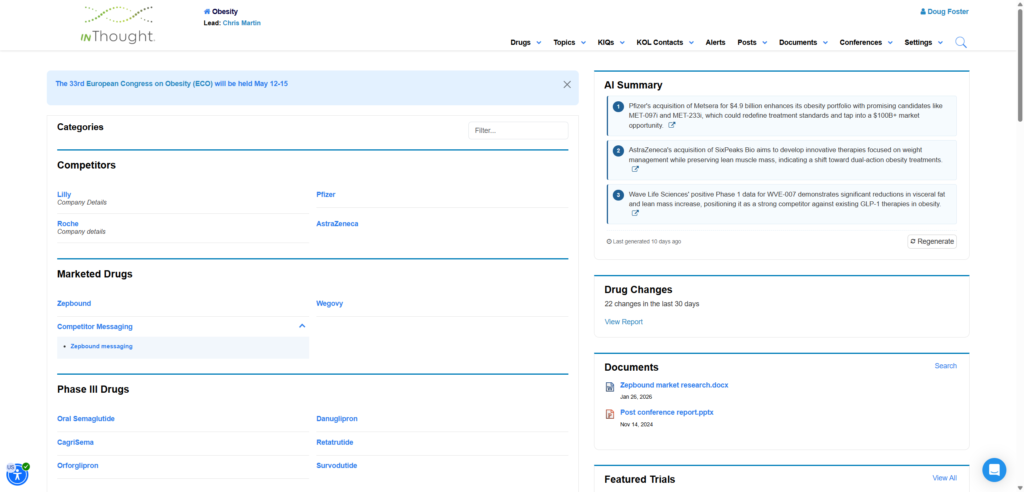
Adjust the experience to suit individual preferences
The menu includes a range of text and display settings. For example, a user can select a dyslexia-friendly text option to change the presentation of on-screen content and support readability.
Text and display
Users can select available display settings based on their personal preferences.
Assistive technology
The experience supports screen readers and other assistive technologies used to navigate content.
On-screen translation
Users can translate information directly within the application without leaving the current screen.
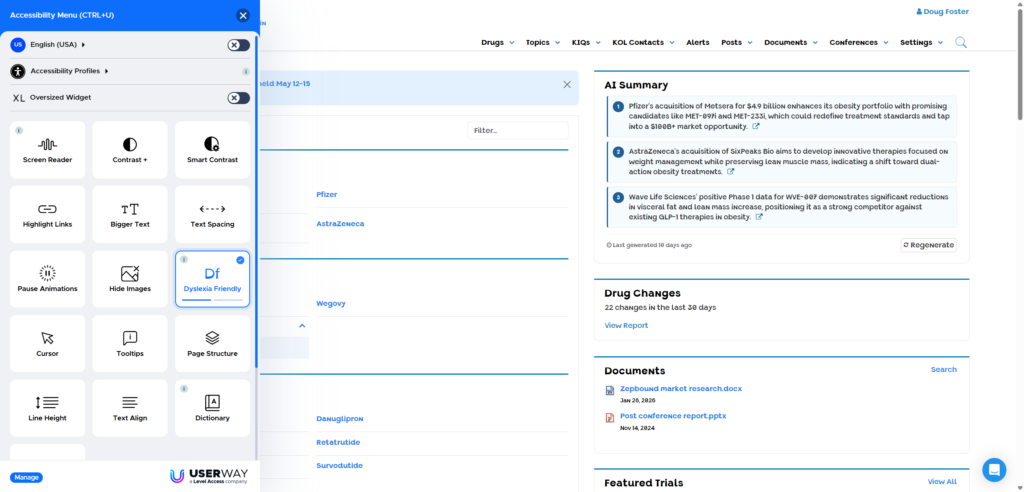
Translate content within the application
The same menu provides a translation option. A user can select a language and view the current screen in that language, then return to the original view when finished.
Optional availability: These features are not automatically enabled for every customer. Please contact our team if your organization would like to discuss enabling them.
See the feature in action
This short walkthrough shows where to find the icon, how to open the menu, and examples of the text and translation options.
Interested in enabling these tools?
Contact your inThought Labs representative or reach out to our team to discuss availability for your organization.